What is Visor?
The leader in operational event tracking
Here are our security certifications currently in progress





5 of the most well-known companies that trust Visor





A code freeze, a release, a migration — it only exists as a few words in a Slack message, buried among hundreds of others.
Nobody can stably track and remember what actually happened
— even over a short period of time. Only a purpose-built automatic system can, which we built.
How does it work?
Guaranteed event creation + instant summaries.
🔒 Security
Visor reads messages to detect events and stores everything in your Slack — in the automatically created #visor-summaries channel. Nothing is stored on our servers. Everything stays in your workspace, in your environment.
📋 Summary channel
A #visor-summaries channel is created automatically in your Slack workspace — you don't need to do anything. Every detected event gets a detailed summary thread posted there. Jump directly to any summary in one click.
Your space is isolated ◯
Each person sees only events from channels they're a member of. Events from other channels are hidden and completely inaccessible.
⚡ Zero manual work
Just enter /invite @Visor to any Slack channels (unlimited quantity). That's it. Visor watches continuously, detects events automatically, and registers them. Visor handles about 40% of a PM's work this way. No manual work needed — if you want to check upcoming events, just visit the Visor platform. They'll already be there, ready to view.
💳 Billing
The count of unique active members in Visor-monitored Slack channels is calculated automatically. You don't need to count unique active members yourself.
🔔 Daily reminders
Every morning, Visor sends one message per monitored Slack channel listing events scheduled for the next day — so your team stays informed.
🔄 Event statuses update automatically
Events have four statuses: Planned, Completed, Rescheduled, Cancelled. Visor updates them automatically from Slack messages.
 Visor
VisorGet started in 2 clicks.
No credit card needed
Connect Visor to your
Slack
1. To start using the ops Visor Calendar, connect Visor to your Slack. Click the button below "Connect to Slack".
Allow the "Visor" app to
access Slack
Review app permissions
Welcome to Visor Platform
Sign in with your Slack account to see your operational Calendar.
1. Invite Visor to channels
/invite @Visor (unlimited quantity).2. Automatic event creation
3. Sign in to the platform
Allow the "Visor" app to
access Slack
Review app permissions
VisorHow to use it?
Add Visor to your Slack workspace
Choose your plan and click the Add to Slack button. You'll be redirected to Slack to authorize Visor. Select the workspace in which the channels are located — the ones from which you want events to be generated. You can connect multiple workspaces. No credit card required for the free trial.
Invite Visor to your channels
In each Slack channel where you want events to be collected, type /invite @Visor. Add it to the channels from which you want events to be generated. Any message in those channels that may represent an event will be analyzed and, if relevant, an event will be created on the Visor platform — along with a Slack summary in the automatically created #visor-summaries channel.
Sign in to the Visor platform
Go to app.visor.fyi and click Sign in with Slack. Click Allow — this authorizes you as a user with your own isolated environment. You will only see events from channels you're a member of. Events created from a manager's Slack channel will never appear for a developer — unless they are in the same channel.
Viewing Slack summaries
To view a summary, click on any event on the Visor platform — a popup will appear with a Slack summary button. Clicking it will redirect you directly to the specific summary in the #visor-summaries channel automatically created by Visor. You don't need to join this channel — you'll see messages from it automatically.
Events, history & creation
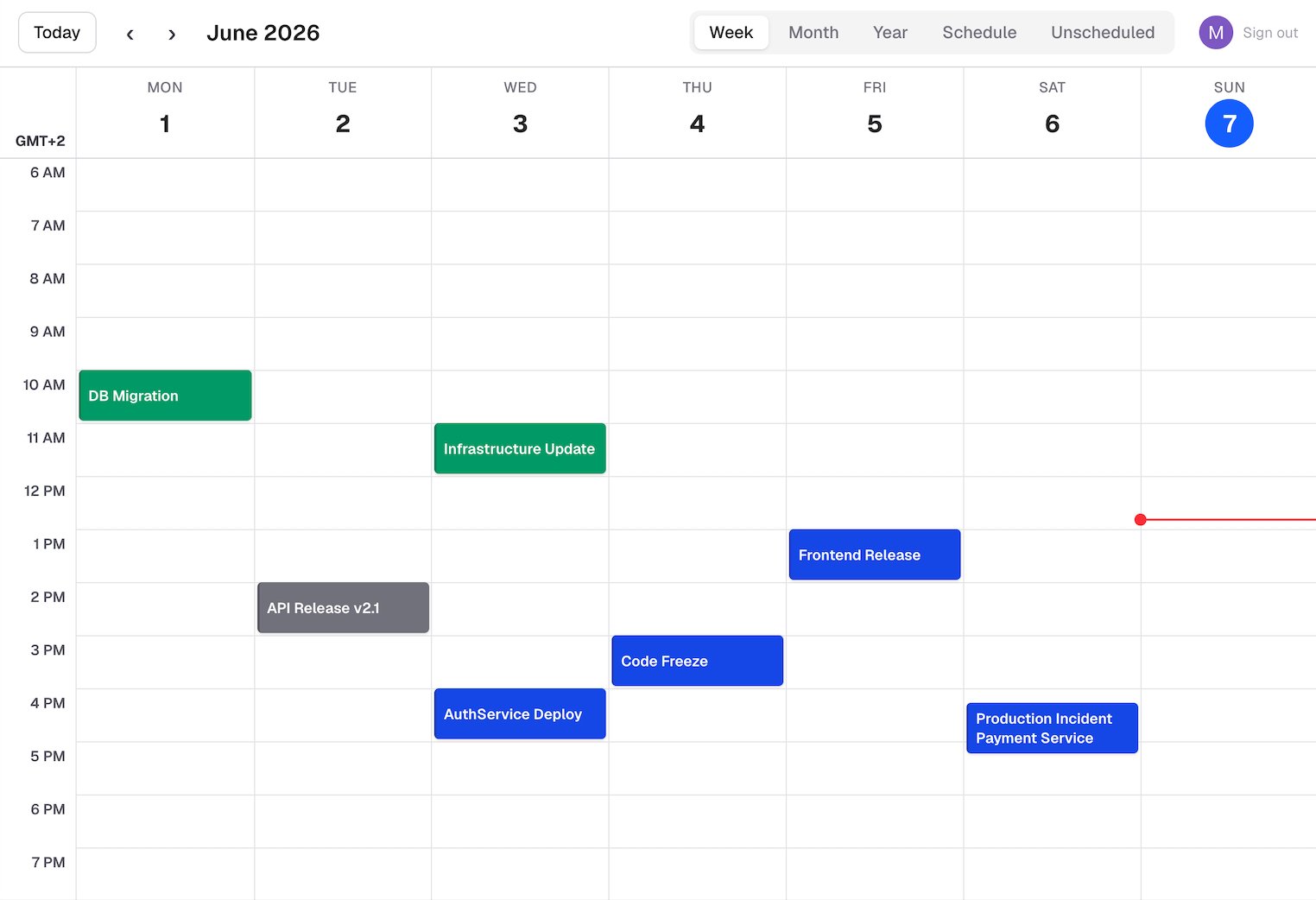
Events are created, updated, and completed fully automatically. Each event has a history tab showing when it was created and modified. If you need to create an event that has no corresponding Slack discussion, use the + Create button in the top-left of the Visor platform.
⚠️ Don't remove Visor from channels
If you remove the Visor bot from a channel, event detection from that channel will stop. Removing Visor from all channels will effectively disable the platform. Do not remove the Visor bot from your channels — or access to events and the platform will be lost.